Onboarding guide

Create your Cal.com account and connect the API key

This is the simple setup path for new Amfion customers. It walks through the exact Cal.com screens for signup, API key creation, and the final connection step inside Amfion.

Screenshot walkthroughUsually 3 to 5 minutes

This guide uses the exact screenshots from your Cal.com onboarding flow. Follow the steps in order, copy the API key before closing the Cal modal, then paste it into Amfion to finish the connection.

Create the account

Start on the free Cal.com plan and finish the basic profile screens.

Generate the key

Create a permanent API key in Developer > API keys.

Connect it in Amfion

Paste the copied key into the Cal.com Integration settings.

Fastest shortcut

After you finish signup, you can jump straight to cal.com/settings/developer/api-keys to generate the key.

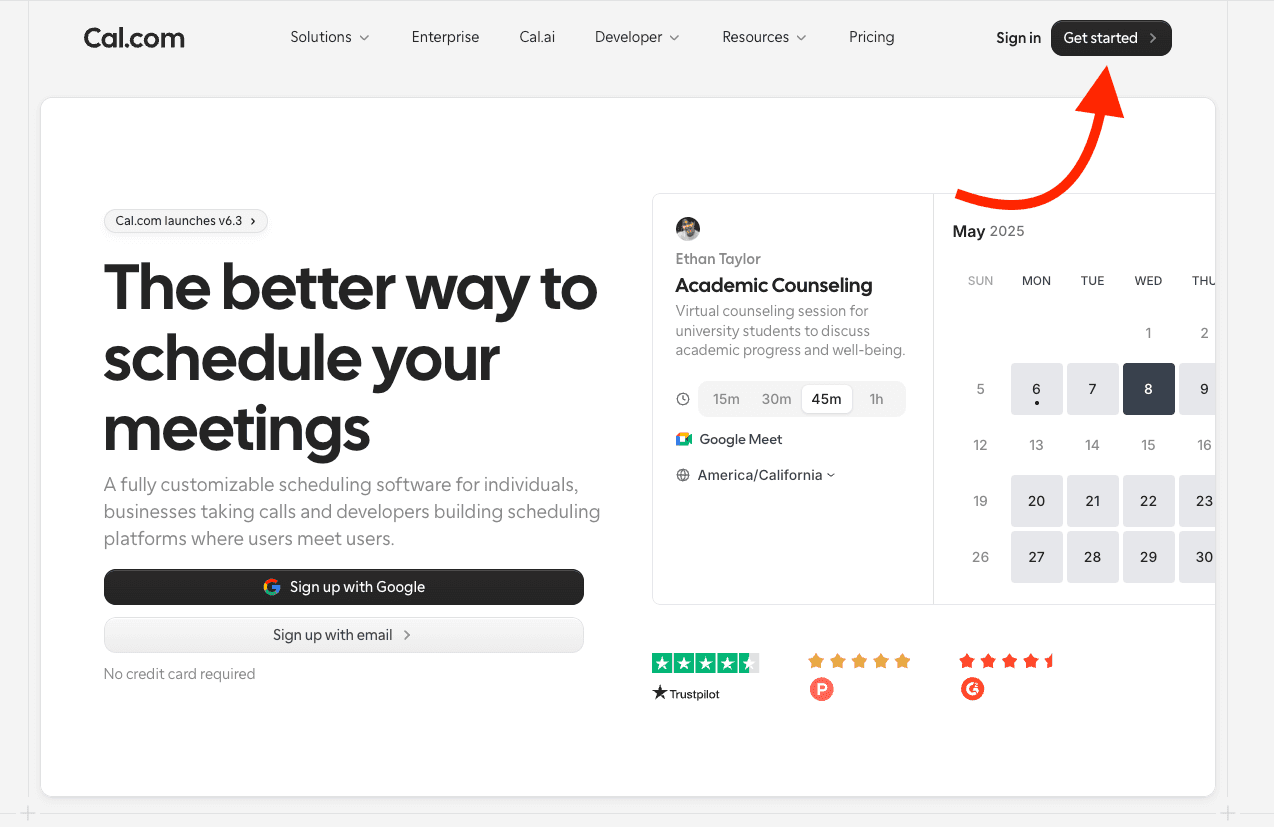
Cal.com homepage with the Get started button highlighted
Step 1

Open Cal.com and click Get started

Go to Cal.com and begin signup from the top-right corner of the homepage.
  • Choose Google sign-up or email sign-up.
  • You can complete this setup on the free personal plan.
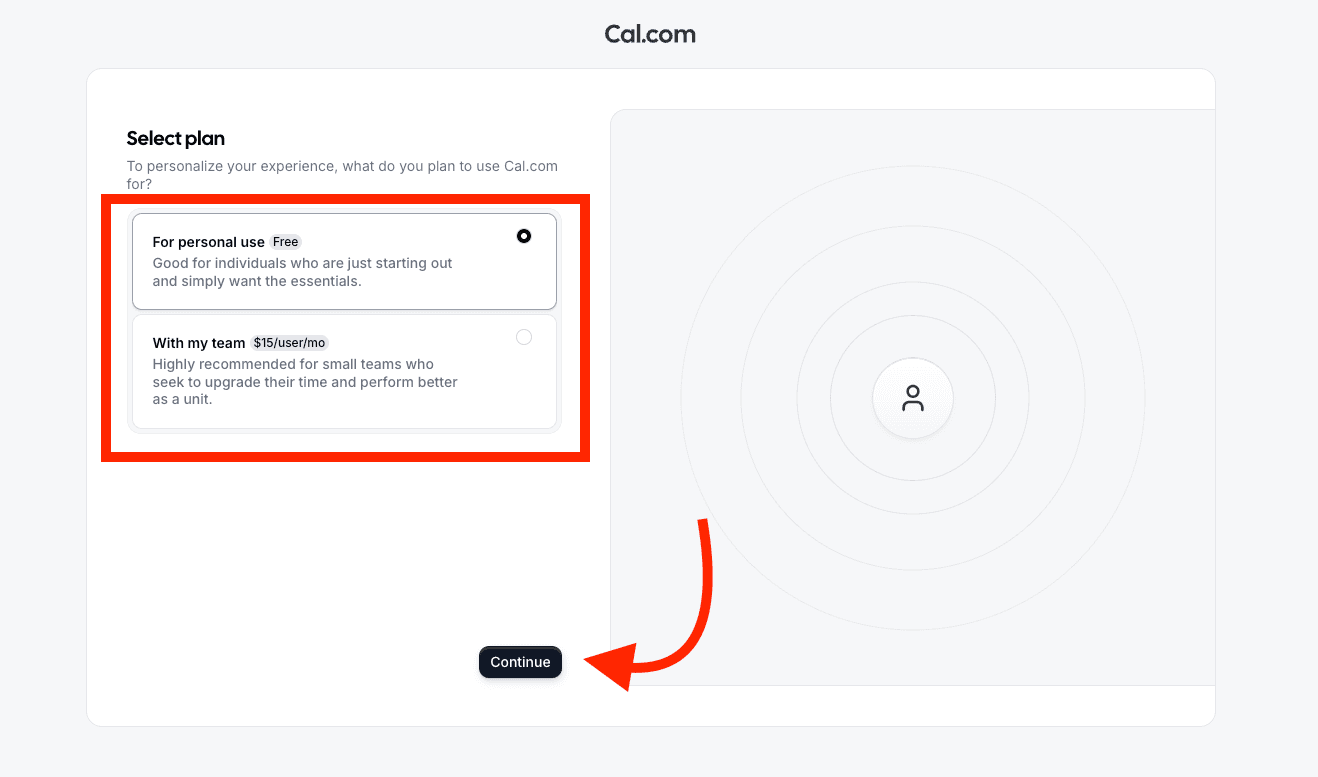
Cal.com plan selection screen with the free personal plan highlighted
Step 2

Choose the free personal plan

When Cal asks how you plan to use it, select the personal option and continue.
  • Pick "For personal use - Free."
  • Click Continue to move into account setup.
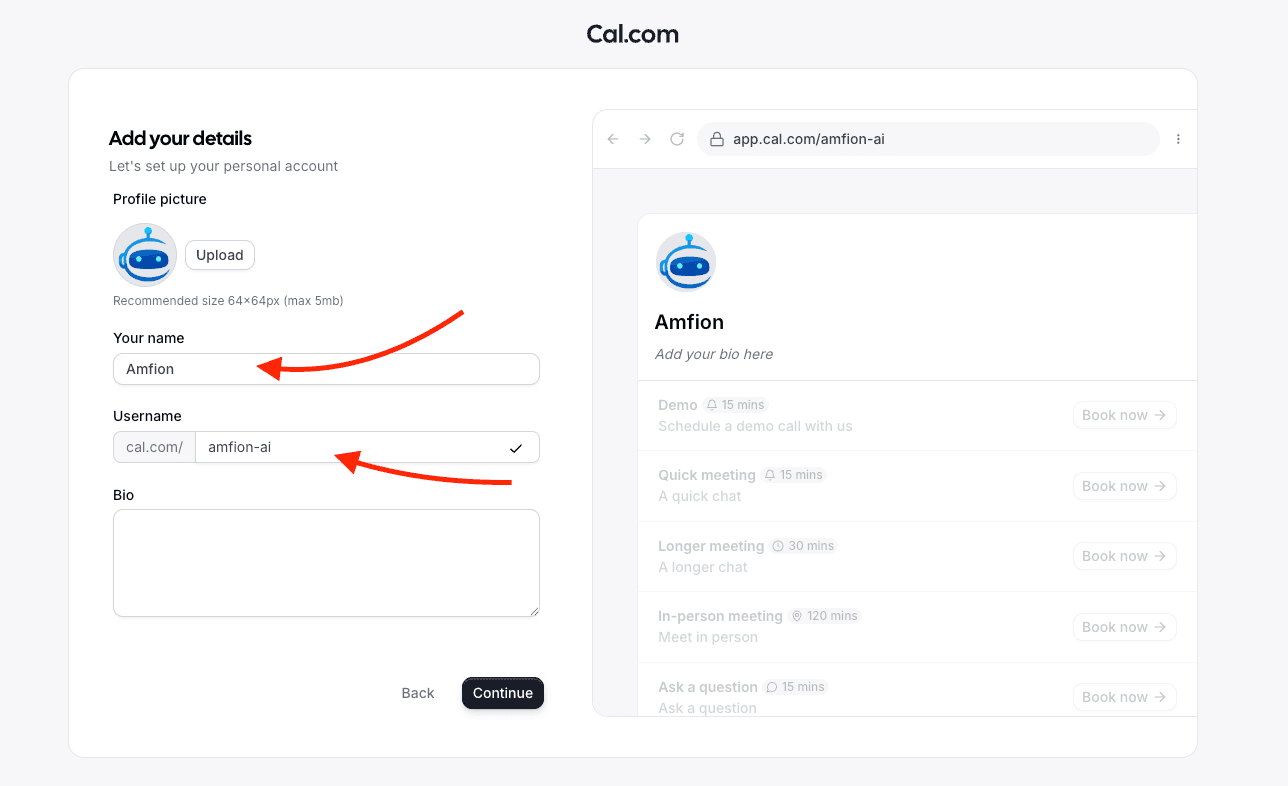
Cal.com account details screen with name and username fields highlighted
Step 3

Add your business details

Fill in the basic profile fields that Cal uses for your public booking page.
  • Enter the business or owner name you want customers to see.
  • Choose a simple username because it becomes part of your Cal booking URL.
  • A short bio is optional for this integration.
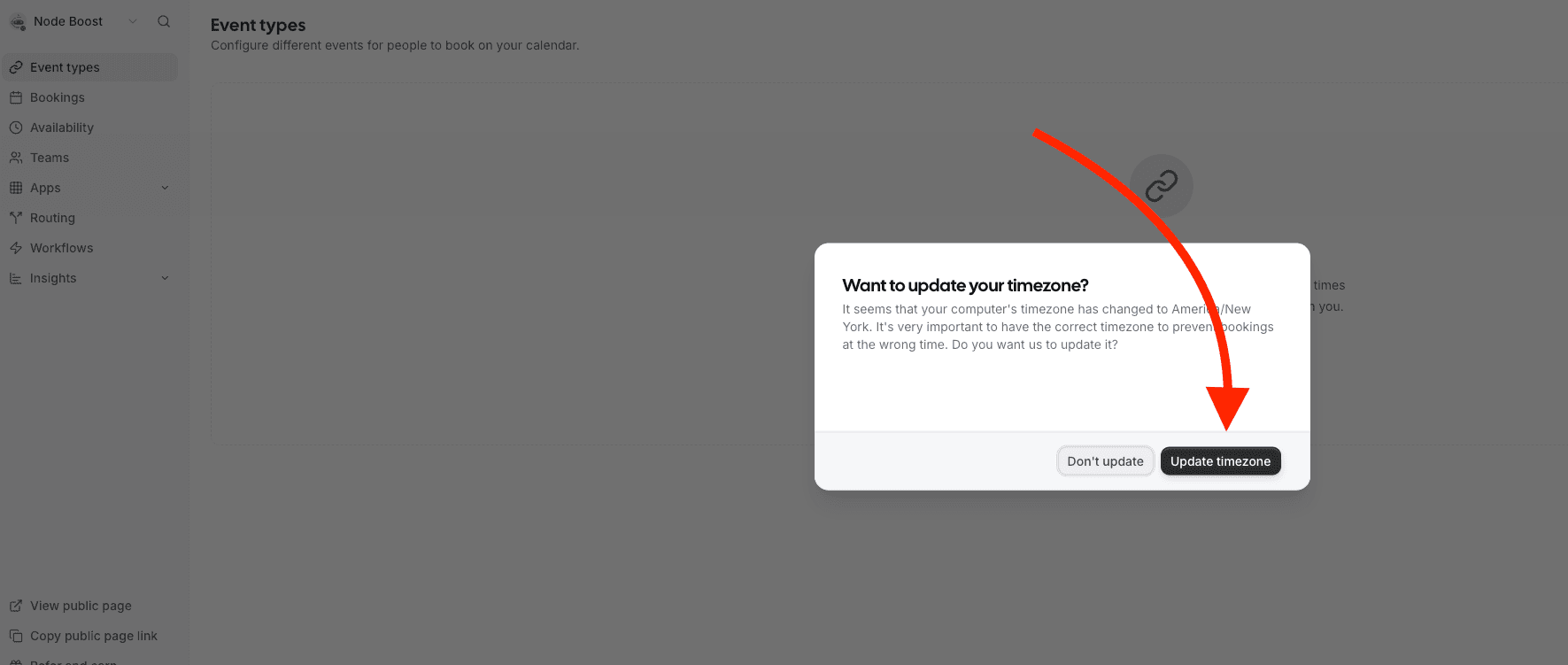
Cal.com timezone update prompt with the Update timezone button highlighted
Step 4Optional but recommended

Confirm your timezone if Cal prompts you

Cal may show a timezone popup right after account creation. This is optional, but it should match where you actually take bookings.
  • Click Update timezone if the detected timezone is correct.
  • If the suggestion is wrong, dismiss it and fix timezone settings before taking bookings.
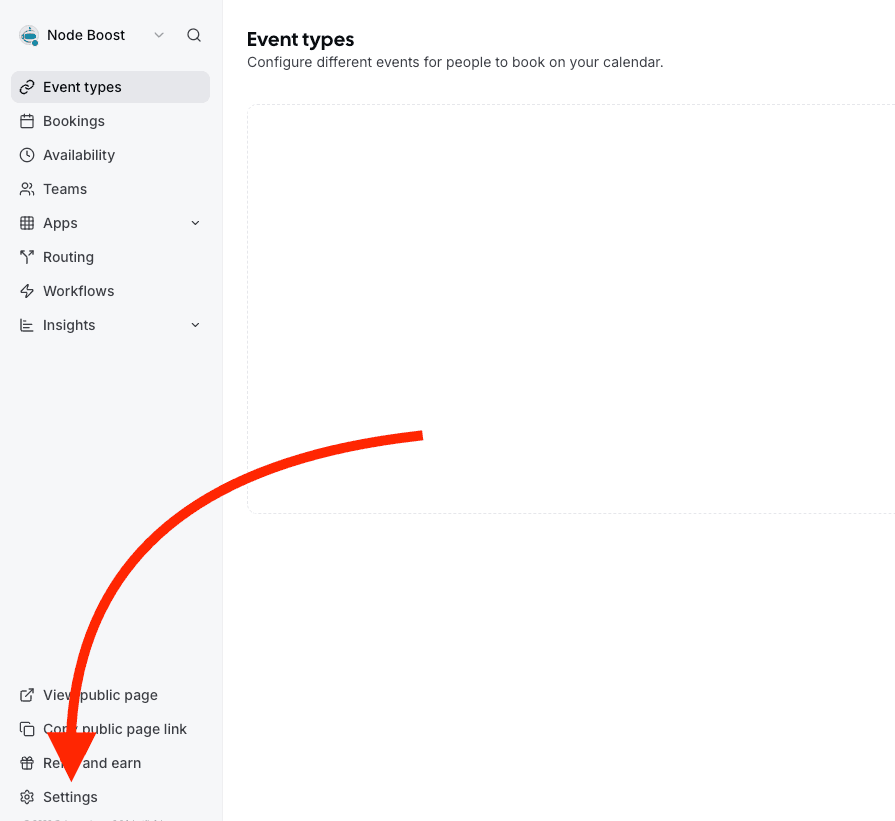
Cal.com dashboard sidebar with Settings highlighted
Step 5

Open Settings from the left sidebar

Once you land inside Cal, scroll to the lower-left navigation and open Settings.
  • You do not need to configure event types yet just to generate the API key.
  • This guide is only focused on getting your account connected to Amfion.
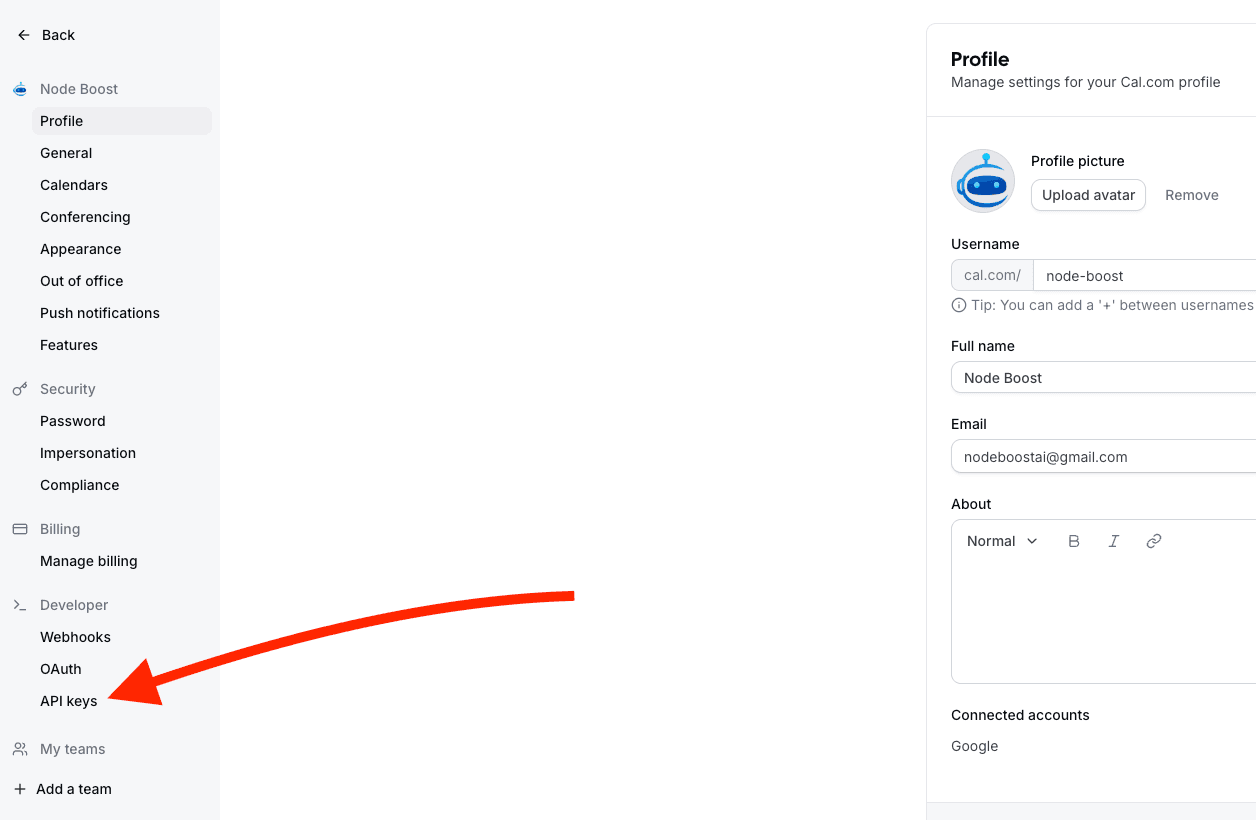
Cal.com settings sidebar with Developer and API keys highlighted
Step 6

Go to Developer and choose API keys

Inside Settings, use the Developer section in the sidebar and click API keys.
  • If you cannot find it, scroll further down in the settings sidebar.
  • The direct page is cal.com/settings/developer/api-keys once you are signed in.
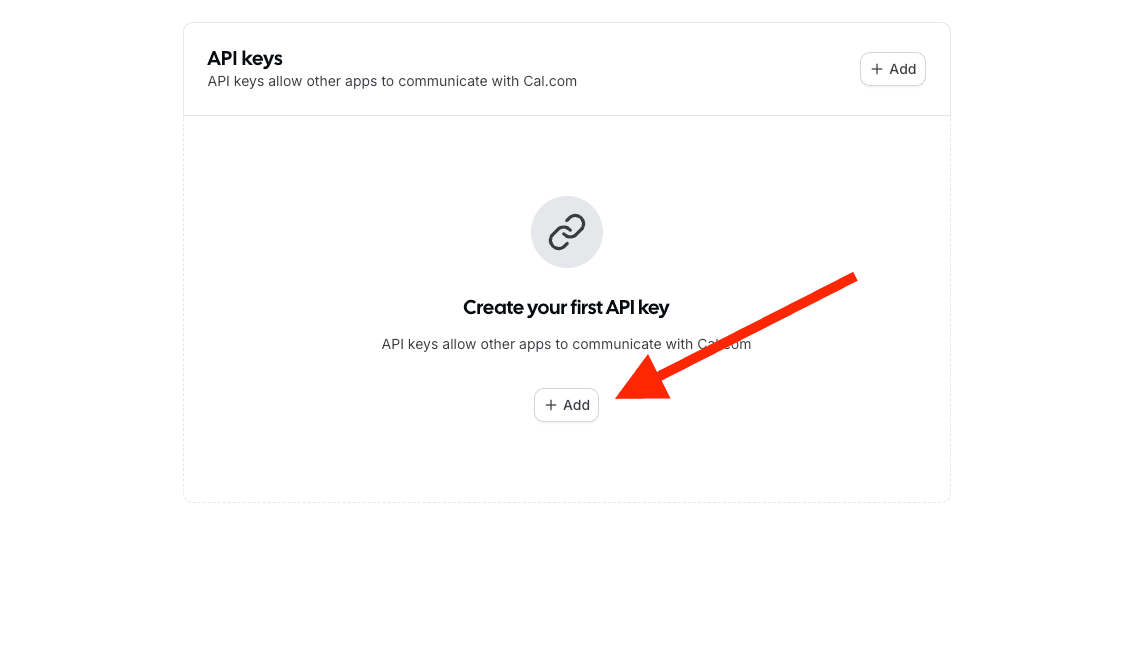
Cal.com API keys screen with the Add button highlighted
Step 7

Create your first API key

On the API keys page, click Add to open the key creation modal.
  • You can use either Add button shown on the page.
  • This is the credential Amfion uses to read availability and create bookings.
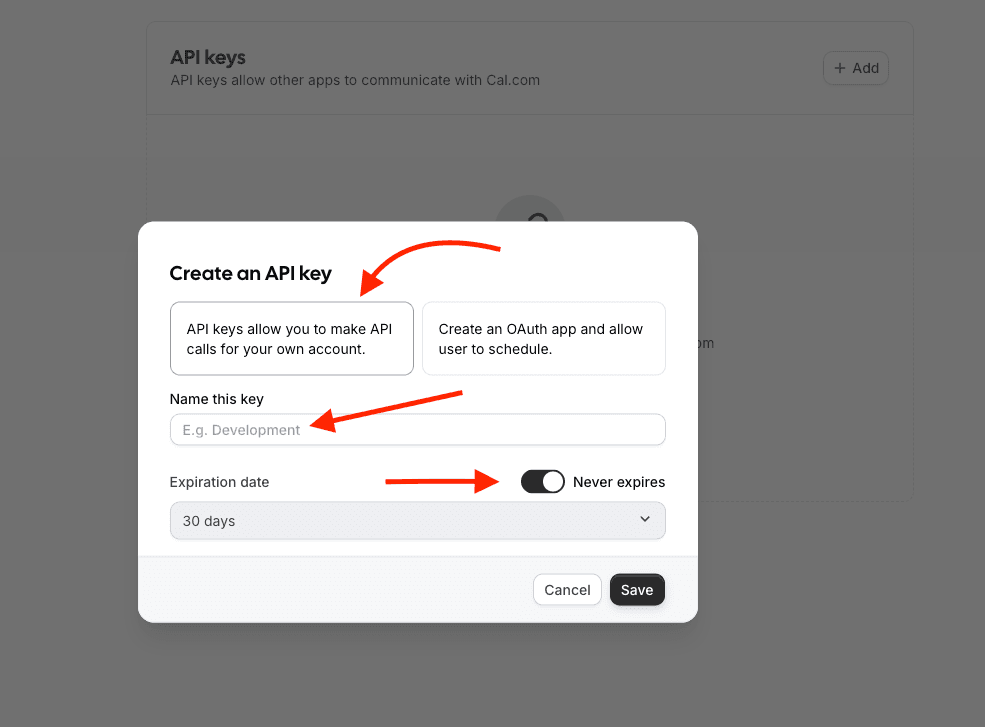
Cal.com create API key modal with the name field and never expires option highlighted
Step 8

Name the key and set it to never expire

Create a standard API key for your own account, give it an obvious name, and avoid short expirations so the integration does not break later.
  • Leave the left option selected: API keys for your own account.
  • Use a name like "Amfion Integration" so it is easy to recognize later.
  • Turn on Never expires unless your team requires scheduled key rotation.
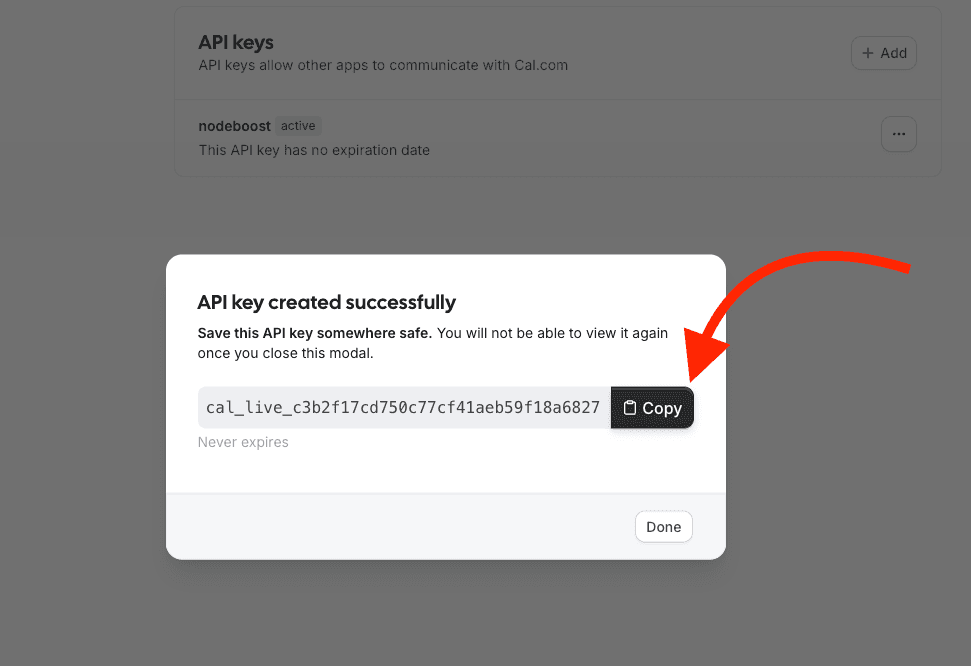
Cal.com API key success modal with the Copy button highlighted
Step 9

Copy the key immediately

Cal only shows the full key once. Copy it before closing the success modal.

  • Click Copy while the key is visible.
  • The key usually starts with cal_live_.
  • Do not click Done until the key is copied somewhere safe.

Final step

Connect the copied key inside Amfion

After you copy the key from Cal.com, switch back to Amfion and complete the connection immediately.

  1. 1Open your Amfion admin area and go to Settings.
  2. 2In the Integrations tab, find the Cal.com Integration card.
  3. 3Paste the copied key into the API Key field.
  4. 4Click Connect Cal.com.
  5. 5Wait for the status badge to change to Connected.

If the connection does not work

  • Remove any extra spaces before or after the key when pasting it into Amfion.
  • If you closed the Cal modal before copying the key, generate a new one. Cal will not show the old key again.
  • If API keys are missing in Cal, return to Settings and expand the Developer section again.

What to do next

  • Sync Amfion services to Cal if you want Amfion-created services pushed into Cal.com.
  • Import existing Cal event types if you already set up event types in Cal first.
  • Use the broader Cal.com setup guide if you still need help with availability or event types.