Onboarding guide

Create your Cal.com account

This is the stripped-down signup path for tenants who do not have a Cal.com account yet. It gets you through the minimum setup on the free plan so you can connect Cal.com to Amfion right after.

Screenshot walkthroughUsually 2 to 4 minutes

This guide is for tenants who need a fresh Cal.com account before connecting it to Amfion. It covers the minimum setup only, so you can get through signup quickly and move straight into the connection flow.

Start on free

You do not need to buy a plan just to connect Cal.com to Amfion.

Set the basics only

Name and username matter now. Everything else can be refined later.

Connect next

After signup, move straight into OAuth or the API key path.

Before you start

  • You can complete this setup on the free Cal.com plan.
  • If you want the simplest connection later, create the account with the same Google login you plan to connect to Amfion.
  • Do not overthink the bio or profile picture yet. You can clean those up later.
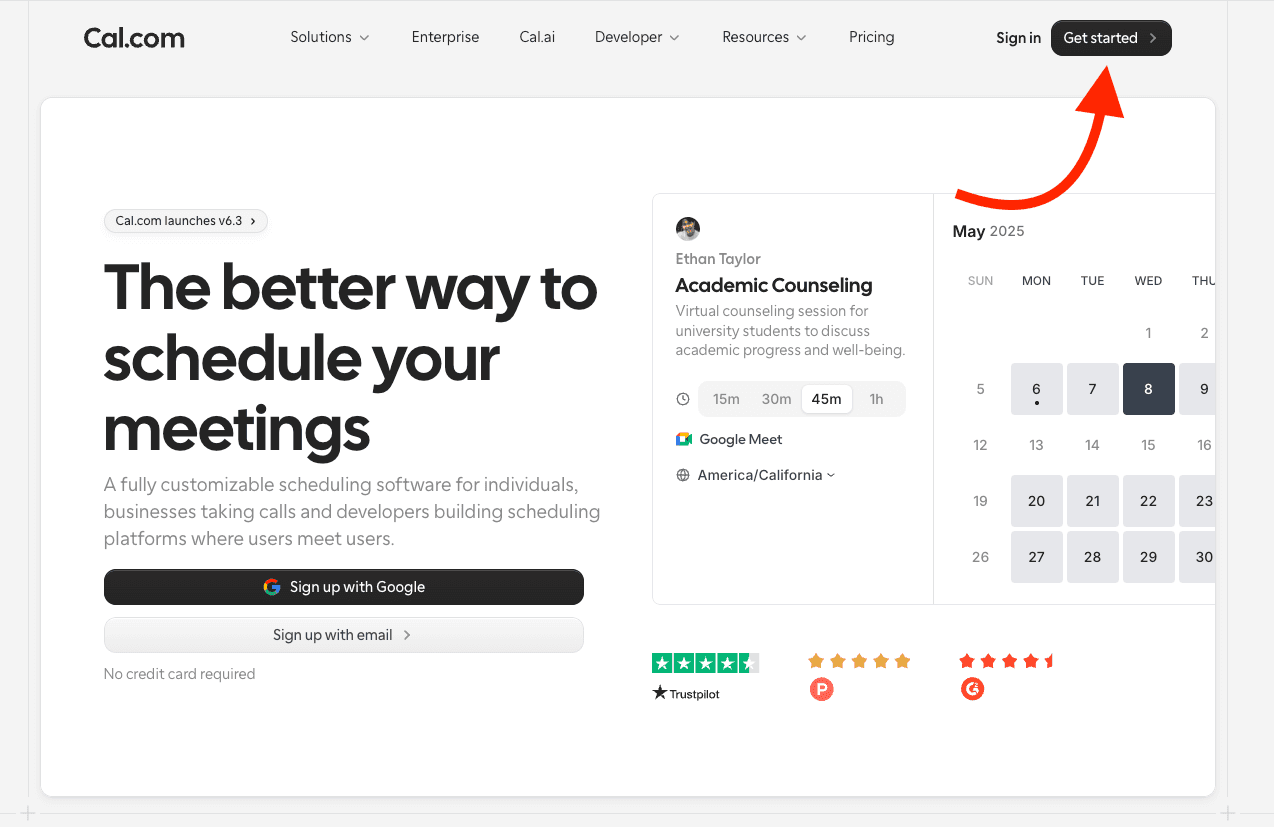
Cal.com homepage with the Get started button highlighted
Step 1

Open Cal.com and click Get started

Go to Cal.com and begin signup from the top-right corner of the homepage.

  • You can sign up with Google or email.
  • For most tenants, Google sign-up is the fastest path.
  • You do not need a paid plan to get started.
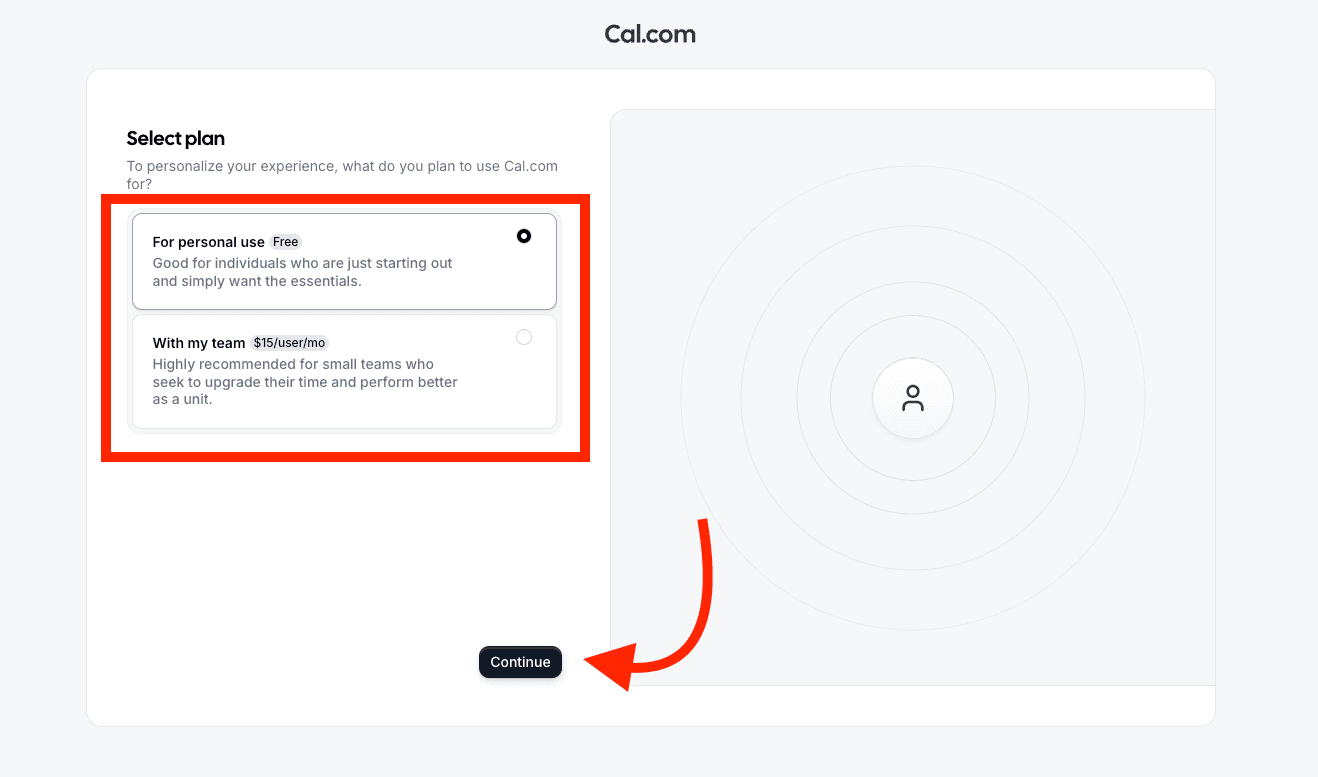
Cal.com plan selection screen with the free personal plan highlighted
Step 2

Choose the free personal plan

When Cal.com asks how you plan to use it, select the personal option and continue.

  • Pick "For personal use - Free."
  • That plan is enough to connect Cal.com to Amfion and start booking.
  • Click Continue to move into account setup.
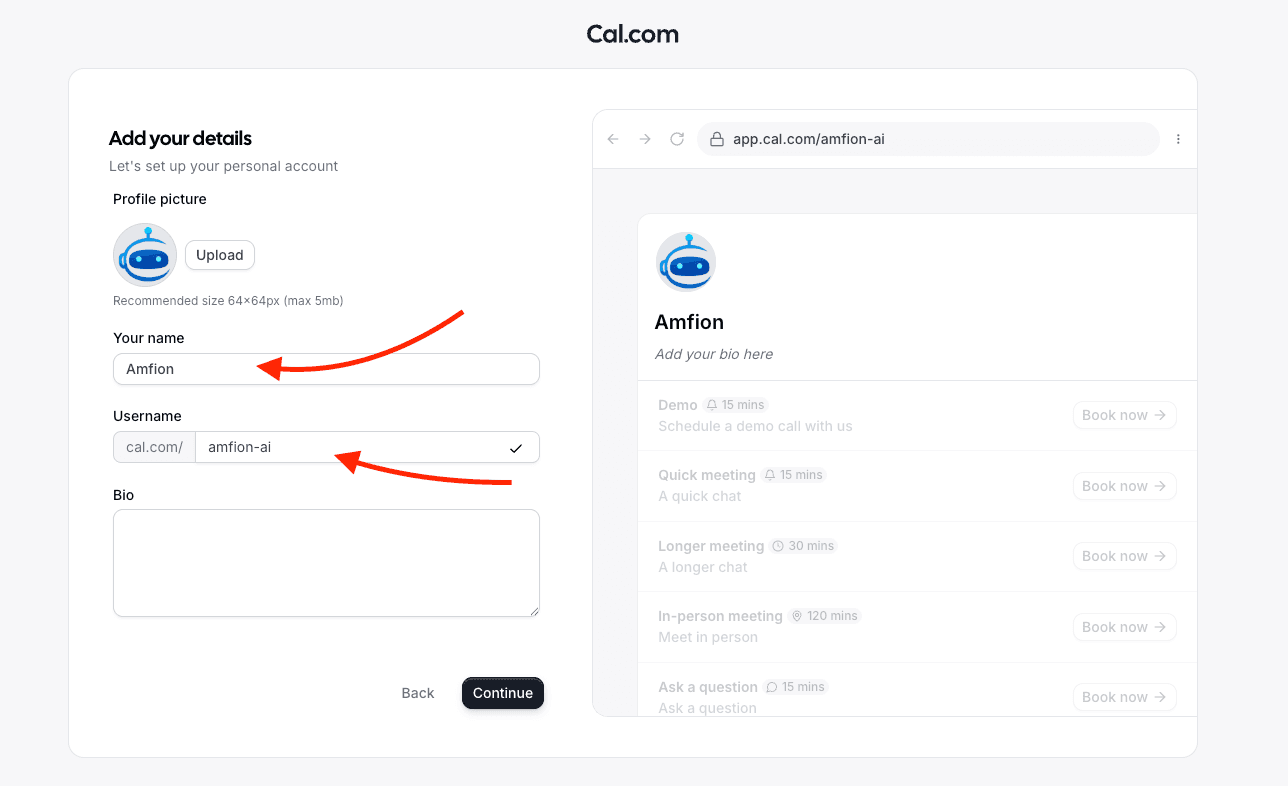
Cal.com account details screen with name and username fields highlighted
Step 3

Add your basic account details

Fill in the name and username Cal.com will use for your public booking profile.

  • Use the business or owner name customers should recognize.
  • Choose a simple username because it becomes part of your Cal.com booking URL.
  • A bio is optional for getting connected to Amfion.
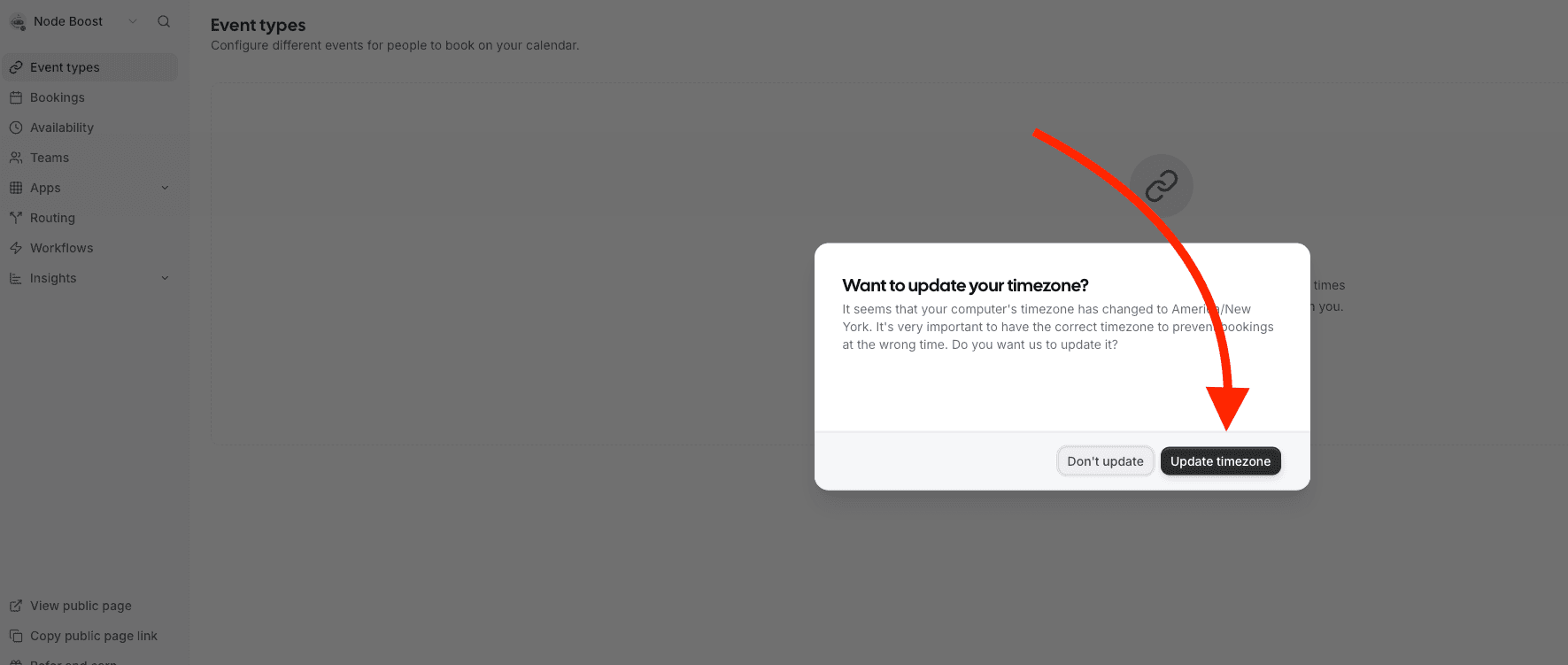
Cal.com timezone update prompt with the Update timezone button highlighted
Step 4Optional but recommended

Confirm your timezone if Cal prompts you

Cal.com may show a timezone popup immediately after account creation. This step is optional, but it should match the timezone you actually book in.

  • Click Update timezone if the suggested timezone is correct.
  • If the suggestion is wrong, skip it and fix timezone settings before taking bookings.
  • Timezone mistakes can make real booking availability look wrong later.

What you should have when you are done

  • Your Cal.com account is created and you can log in normally.
  • You have a name and username saved for your public booking page.
  • You can move straight into the OAuth connection flow or the API key path.

What to do next

Recommended next step: connect with OAuth

Best for most tenants. No API key copy/paste, and Amfion manages the connection after consent is approved.

Manual fallback: use an API key

Useful if your team prefers manually managed credentials or your deployment does not offer OAuth.

If signup gets stuck

  • If the username is taken, choose a simpler variation and continue. You can usually update it later if needed.
  • If signup returns you to the homepage, restart from Get started and make sure the account-creation step completes all the way through.
  • If the timezone prompt looks wrong, do not guess. Correct timezone matters for booking accuracy later.